Stuck in Activation? The Ultimate Guide to Fixing Common eSIM Connection Issues
Stuck in Activation? The Ultimate Guide to Fixing Common eSIM Connection Issues
The promise of eSIM technology is seamless connectivity: just scan a code, and you're instantly on a new mobile network. However, the reality, as many early adopters can attest, isn't always so smooth. "Activation failed," "No service," or a spinning loading icon are all too common when setting up a digital SIM. If you've been met with one of these hurdles, don't worry. The problem is often a simple configuration or network hiccup. This guide will walk you through the most frequent eSIM activation pitfalls and, most importantly, show you how to fix them yourself.
First, a Few Vital Checks
Before diving into deep troubleshooting, make it a point to perform these basic checks. They fix a surprisingly large number of issues.
Verify eSIM Support: The very first step is to confirm that your specific device is eSIM compatible and, crucially, that it is unlocked from any previous carrier. An unlocked phone is a prerequisite for activating any new SIM, physical or digital.
Solid Connection: Your device must have an active and stable connection during the entire activation process. This means a good Wi-Fi signal or an existing, working cellular data connection on your physical SIM. The process involves downloading data from the carrier's server. A weak connection can corrupt the profile download.
Double-Check the Details: If you are inputting activation codes manually, be careful. A single mistyped digit will cause an error. Compare your inputs to the carrier's information with extreme care.
Troubleshooting: Step-by-Step Fixes
Once the basic checks are done, it's time to tackle common errors with these step-by-step methods. They range from the simple to the slightly more involved.
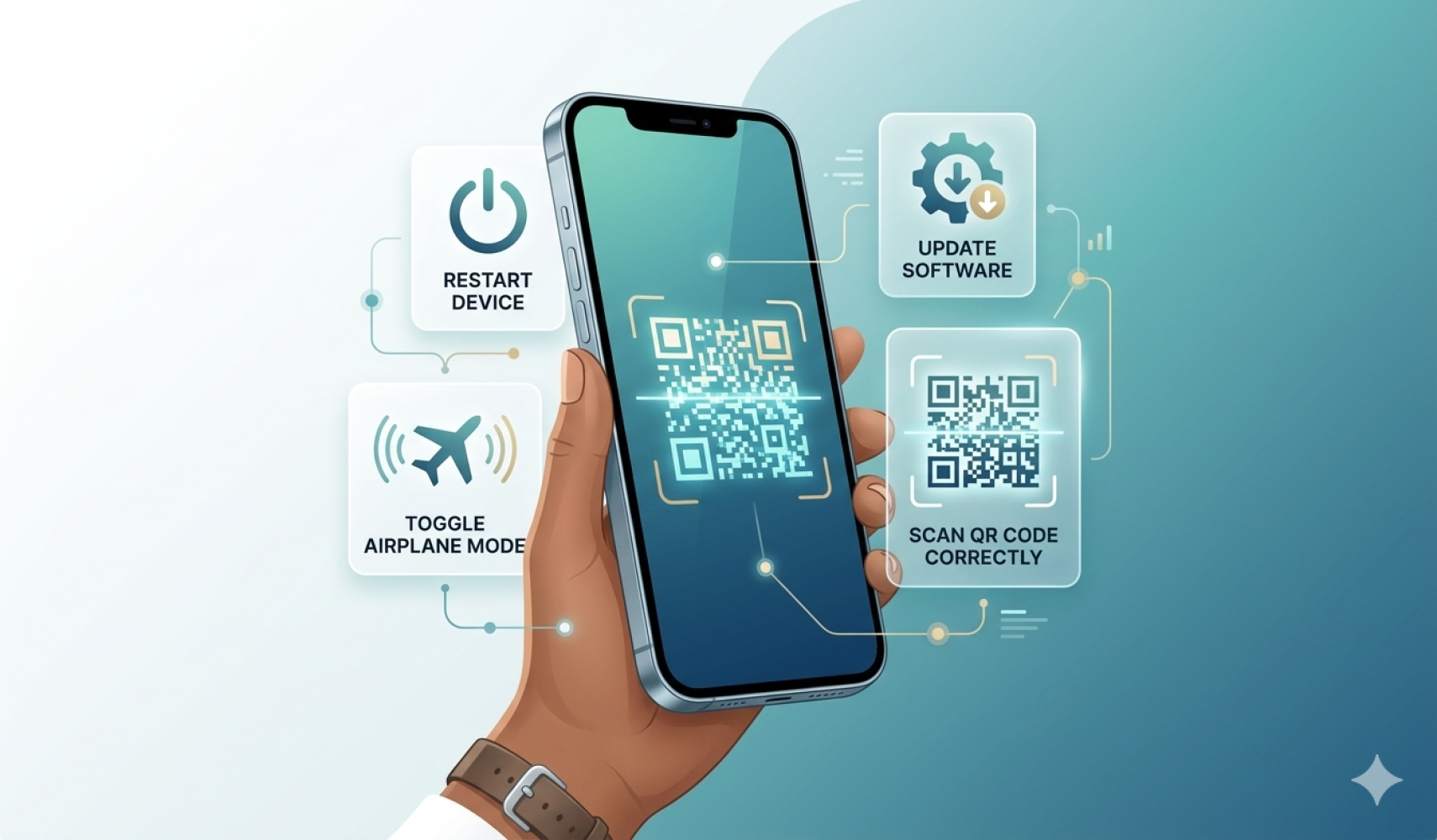
Method 1: The Classic Restart
It’s a cliché for a reason. A full restart clears all temporary data, resets network settings, and can instantly resolve minor software glitches that are blocking the activation process. For all devices:
Power off your device completely.
Wait a minimum of 60 seconds.
Turn it back on and attempt the activation again.
Method 2: Airplane Mode and Wi-Fi Toggle
Sometimes, your device simply gets stuck. Manually cycling its network antennas can "wake up" the system and let the activation complete.
Activate Airplane Mode for at least 30 seconds to force-disconnect all signals.
While Airplane Mode is on, also turn your Wi-Fi off.
Deactivate Airplane Mode and turn your Wi-Fi back on. Attempt activation.
Method 3: Ensure Your Device Software is Updated
A clean software installation can act as a reset, fixing deeper system bugs that could be preventing the profile from being installed correctly.
Go to your device's settings menu (e.g., Settings > General > Software Update on iPhone).
Download and install any available system updates. Many major updates include fixes specifically for eSIM functionality.
Method 4: Scan the QR Code Directly from the Email
One of the most common issues occurs when users try to activate an eSIM by scanning the QR code that they've opened within another app (like a QR code scanner or a photo editing tool). This process is known as "inter-app scanning," and it frequently fails to correctly transfer the data.
The only supported method is to open the activation email on a different device (a computer, a friend’s phone, etc.) and scan it directly using your phone’s built-in camera or the official carrier application. This ensures a clean data transfer without any interference from other apps.
Method 5: Clear Your Camera Cache (Android Only)
On some Android devices, a built-in camera app can collect temporary data that interferes with the QR code scanner. Resetting it might be the key to getting your scan to complete successfully.
Go to Settings > Apps.
Find your Camera app and select 'Storage.'
Choose the options for 'Clear cache' and 'Clear data/storage.'
Retry the activation. Note: this will reset your camera app settings, but it will not delete any of your photos.
If All Else Fails: Delete the Profile and Start Over
In rare instances, an eSIM profile download can become corrupted, making it impossible to activate. The only solution is a complete reset:
For Apple Devices (iPhone, iPad): Go to Settings > Cellular (or Mobile Data) > Cellular Plans. Tap on your new plan and choose 'Remove Cellular Plan.'
For Android Devices: Go to Settings > Network & Internet > Mobile Network (or SIMs). Select the profile and find the option to 'Erase SIM' or 'Remove.'
Once the plan is removed, perform a full network settings reset (found in Settings > General > Transfer or Reset iPhone > Reset > Reset Network Settings on iPhone). This is a safe step that resets your Wi-Fi, Bluetooth, and cellular network configurations without deleting any other data.
Now, and only now, re-scan your original activation code from the email using the correct method.